> For the complete documentation index, see [llms.txt](https://docs.mosofin.com/llms.txt). Markdown versions of documentation pages are available by appending `.md` to page URLs; this page is available as [Markdown](https://docs.mosofin.com/destinations/mosofin-destinations/grok.md).
# Grok
Grok is a MosoFin destination for asking questions about live QuickBooks data from your authorized workspaces. MosoFin connects through a read-only custom connector.
## Use this guide
* [Connect MosoFin to Grok](/destinations/mosofin-destinations/grok/connect-grok.md)
* [How data appears in Grok](/destinations/mosofin-destinations/grok/data-overview.md)
* [Best practices](/destinations/mosofin-destinations/grok/best-practices.md)
* [Common issues](/destinations/mosofin-destinations/grok/common-issues.md)
* [Grok FAQ](/destinations/mosofin-destinations/grok/faq.md)
## Setup checklist
1. Add MosoFin as a custom connector in Grok.
2. Sign in to MosoFin and approve access.
3. Confirm that Grok can list your authorized MosoFin workspaces.
Setup takes about five minutes when your Grok account can already add connectors.
## Choose your setup path
| Account type | Who sets it up? | Start here |
| ----------------------------- | ----------------------------------------------------------------------- | ---------------------------------------------------------------------------------------------------------------------------------------------------------- |
| Individual account | You | [grok.com/connectors](https://grok.com/connectors) |
| Business or Enterprise member | Your team admin provisions MosoFin first; you then connect your account | Ask your admin to complete [Admin setup](#admin-setup-for-business-and-enterprise), then continue at [Connect your account](#connect-your-account-in-grok) |
| Business or Enterprise admin | You provision MosoFin for the team, then connect your own account | [Admin setup](#admin-setup-for-business-and-enterprise) |
If **New Connector** is missing, contact your Grok workspace administrator. Grok may rename or move menu items as its interface changes.
## Before you begin
You need:
* A MosoFin account.
* At least one active MosoFin workspace.
* QuickBooks connected to the workspace you want to use.
* Permission to add connectors in Grok, or help from your Grok team admin.
* The MosoFin MCP server URL: `https://mcp.mosofin.com/mcp`.
Do not paste passwords, access tokens, client financial data, or private URLs into the connector form or into screenshots.
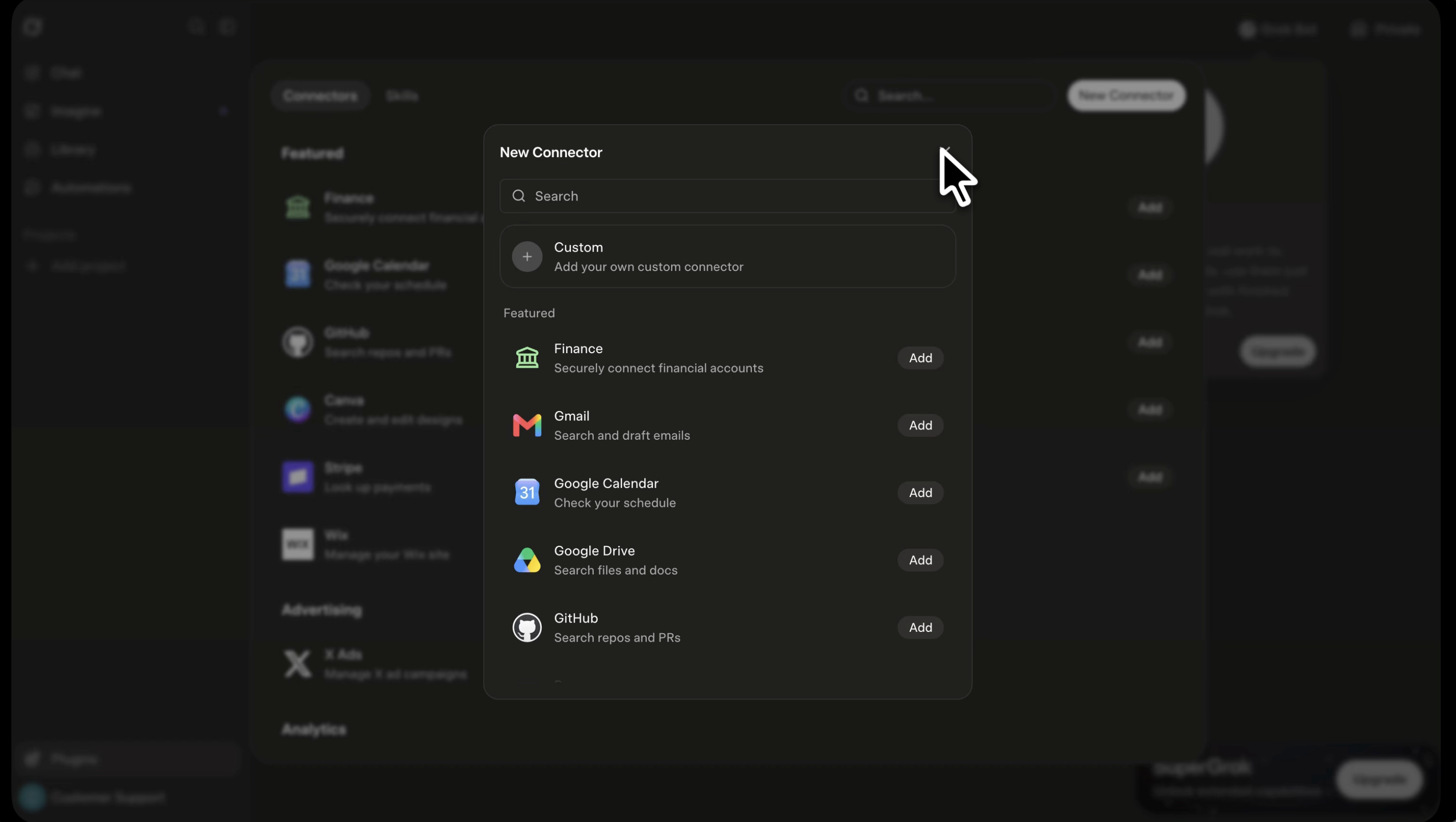
**1. Open the Grok connector picker**
 ## Connect your account in Grok
1. Go to [grok.com/connectors](https://grok.com/connectors) and sign in.
2. Select **New Connector**.
3. Select **Custom**.
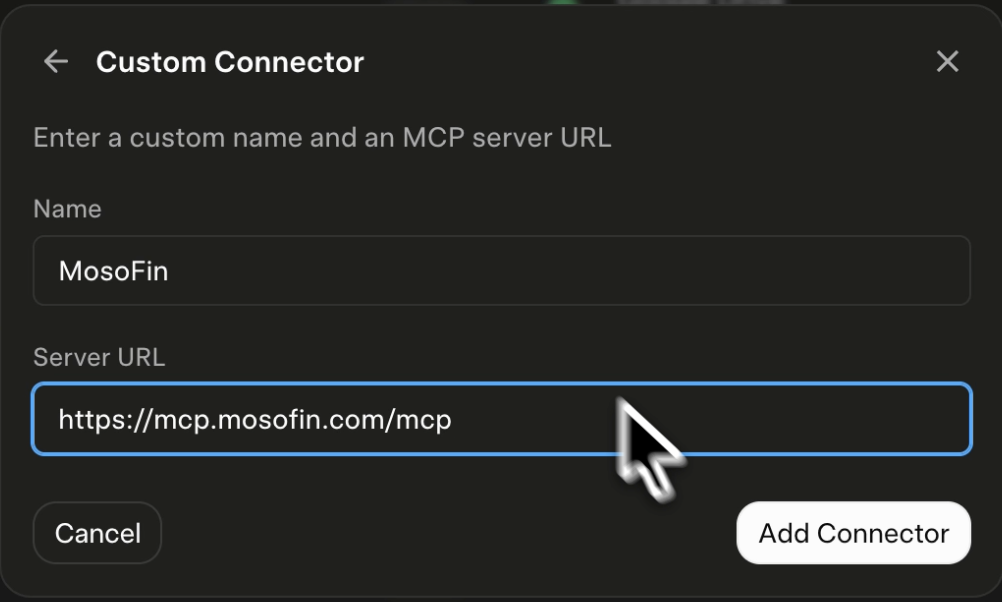
4. Name the connector **MosoFin**.
5. In the MCP server URL field, paste:
`https://mcp.mosofin.com/mcp`
6. Continue.
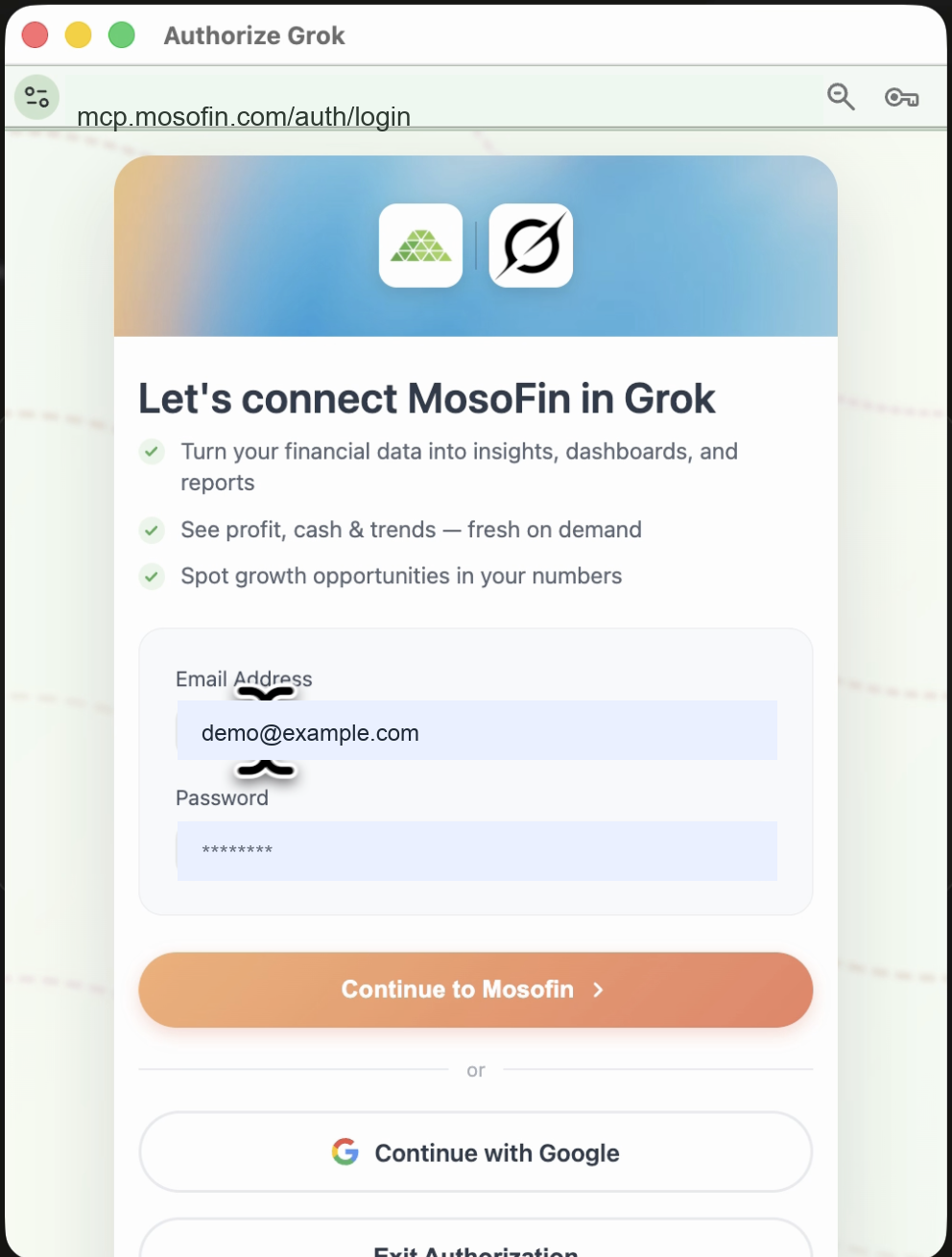
7. Sign in to MosoFin in the window that opens.
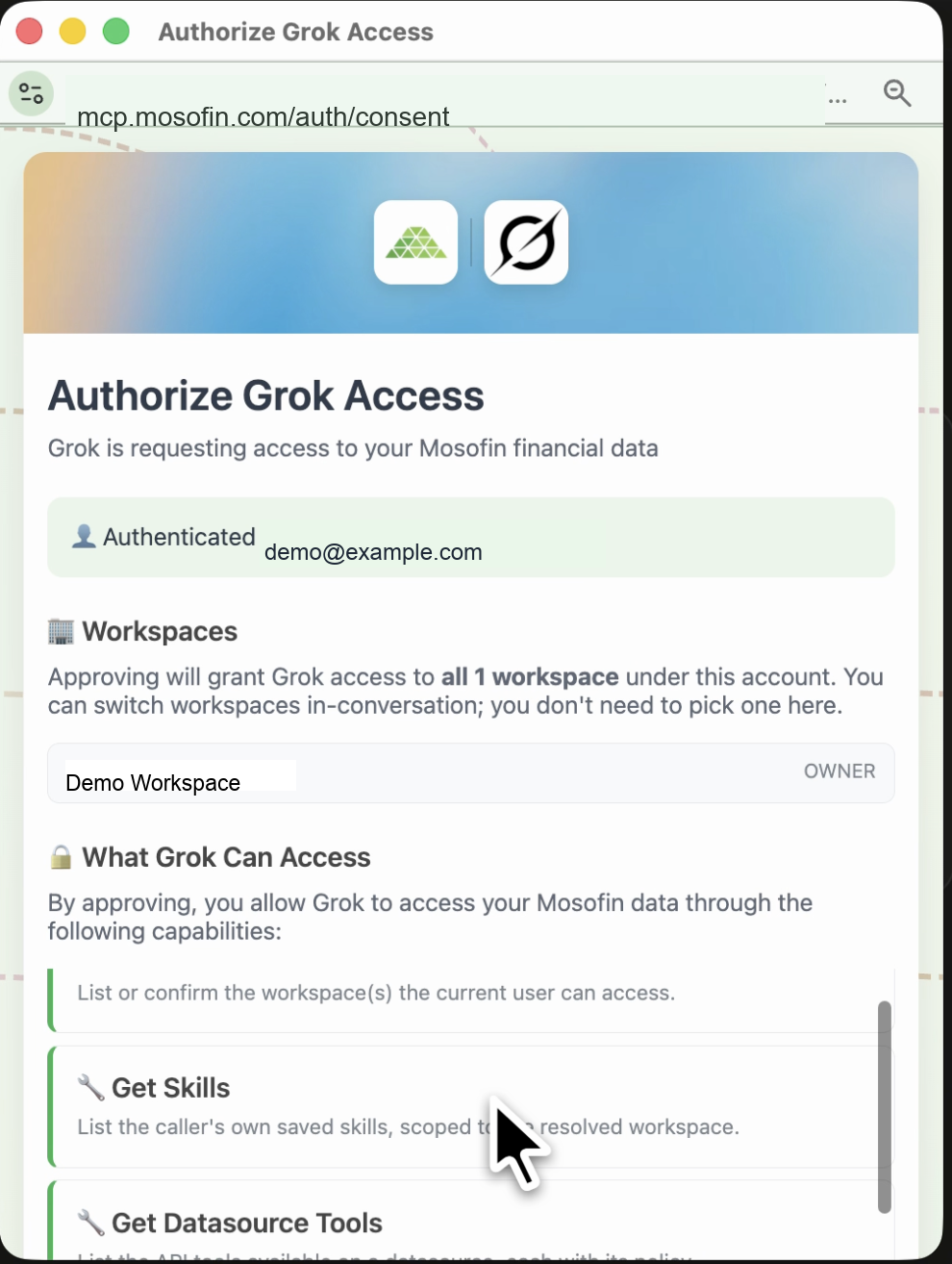
8. Review the access request and approve the connection.
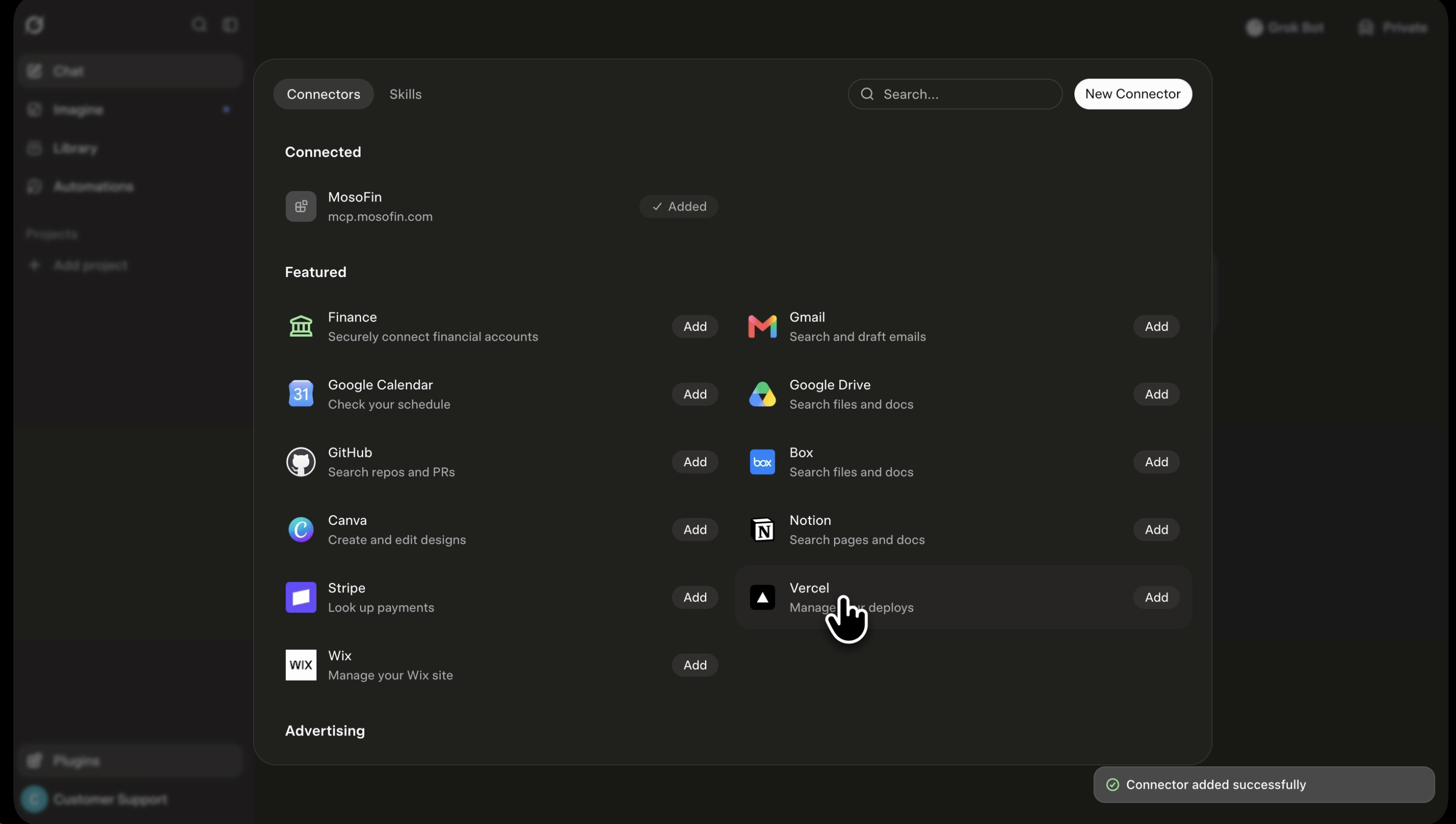
9. Return to Grok and confirm that MosoFin appears in your connected list.
**2. Enter the MosoFin MCP server**
## Connect your account in Grok
1. Go to [grok.com/connectors](https://grok.com/connectors) and sign in.
2. Select **New Connector**.
3. Select **Custom**.
4. Name the connector **MosoFin**.
5. In the MCP server URL field, paste:
`https://mcp.mosofin.com/mcp`
6. Continue.
7. Sign in to MosoFin in the window that opens.
8. Review the access request and approve the connection.
9. Return to Grok and confirm that MosoFin appears in your connected list.
**2. Enter the MosoFin MCP server**
 **3. Sign in to MosoFin**
 **4. Authorize Grok access**
 **5. Confirm the connector was added**
 ## Test the connection
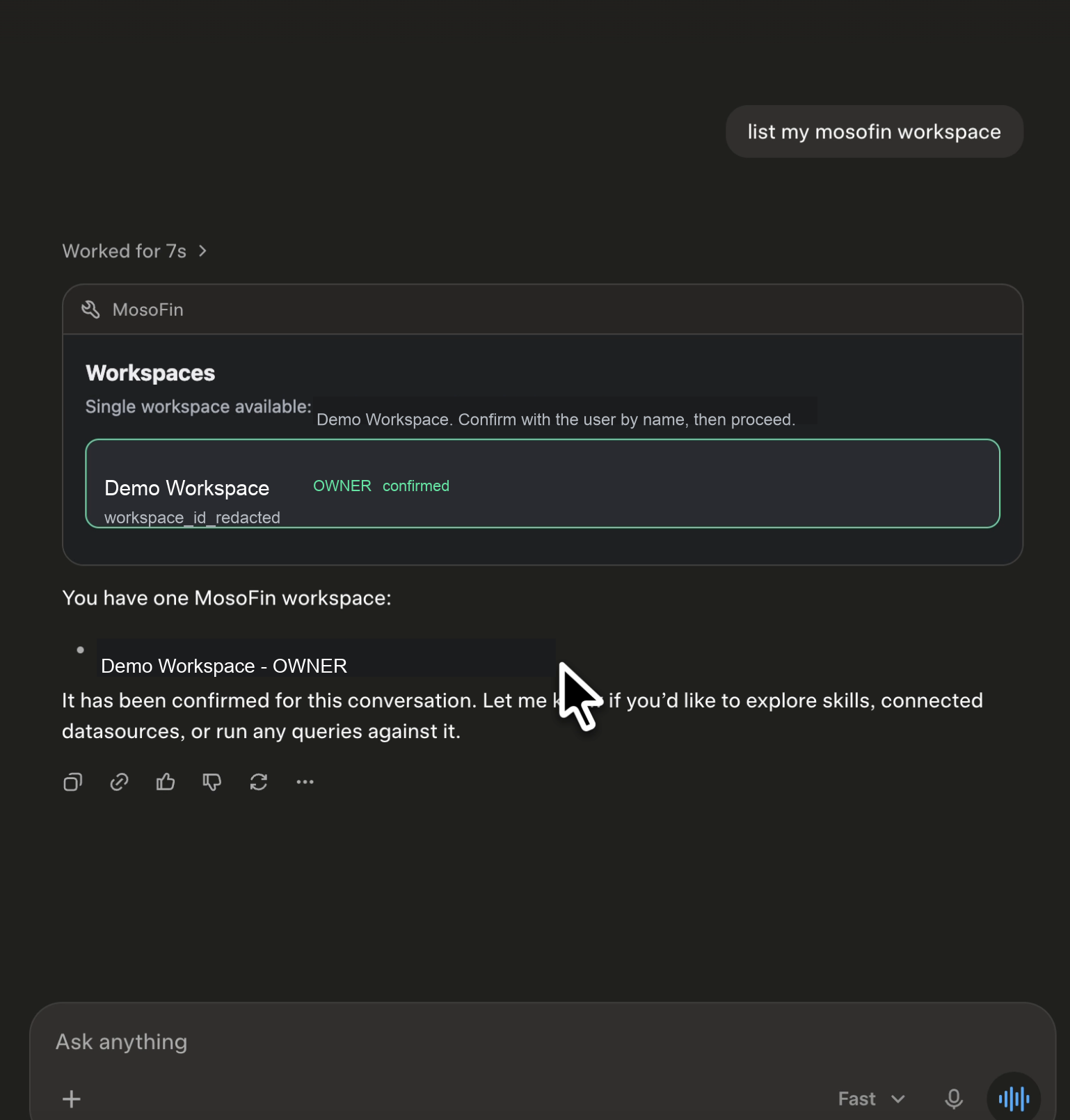
Start a new Grok conversation and enter this exact prompt:
`List my MosoFin workspaces.`
If Grok asks to use a MosoFin tool, review and approve the request. The response should list only the workspaces your MosoFin account can access. It should never show a password, token, or full QuickBooks credential.
**6. Confirm Grok can reach your MosoFin workspace**
## Test the connection
Start a new Grok conversation and enter this exact prompt:
`List my MosoFin workspaces.`
If Grok asks to use a MosoFin tool, review and approve the request. The response should list only the workspaces your MosoFin account can access. It should never show a password, token, or full QuickBooks credential.
**6. Confirm Grok can reach your MosoFin workspace**
 ## Try your first financial question
Once the test succeeds, name the workspace needed for the task and ask a focused question:
`Using [workspace name], summarize revenue and expenses for last month.`
MosoFin supports review across multiple entities or clients. Each workspace has its own allowance of up to five authorized QuickBooks entities from the QuickBooks source type.
## Admin setup for Business and Enterprise
Grok Business and Enterprise require a team admin to provision the connector before members can use it.
1. Sign in to the [xAI Console](https://console.x.ai/).
2. Select the correct team.
3. Open **Grok Business** → **Connectors**.
4. Select **+ Add Connector**.
5. Select **Other** to add a custom MCP server.
6. Enter **MosoFin** and `https://mcp.mosofin.com/mcp`.
7. Complete the MosoFin authentication flow.
8. Tell team members that MosoFin is available.
9. Each member goes to [grok.com/connectors](https://grok.com/connectors), connects their MosoFin account, and runs the test prompt.
Team connector provisioning may look different depending on the Grok plan and admin console version. Use the same server URL, `https://mcp.mosofin.com/mcp`, when adding MosoFin for the team.
## If the connection does not work
### New Connector is missing
Confirm that you are signed in to the correct Grok account. In a managed Business or Enterprise team, ask an admin to provision MosoFin and confirm that your account is allowed to use it.
### Grok cannot discover MosoFin tools
Confirm that the URL is exactly `https://mcp.mosofin.com/mcp`, with no spaces or punctuation after it. Remove the connector, add it again, and complete the MosoFin sign-in flow.
### The sign-in or approval window closes
Allow pop-ups for Grok, reopen the connector, and try again. Sign in with the MosoFin account that can access the intended workspace.
### The test returns no workspaces
Open MosoFin and confirm that at least one workspace is active and that QuickBooks is connected. Then reconnect MosoFin in Grok and repeat:
`List my MosoFin workspaces.`
### Grok lists the wrong workspace
Disconnect MosoFin from Grok, then reconnect using the correct MosoFin account. Do not continue with financial analysis until the authorized workspace list is correct.
## Permissions and privacy
All MosoFin QuickBooks tools are read-only. They cannot create, update, or delete records or post transactions. Grok can use only the tools allowed by your workspace role, API tool policies, and usage limits. Disabled tools remain unavailable.
Review every permission request before approving it, especially when working with multiple clients or entities.
## Disconnect or reconnect MosoFin
1. Go to [grok.com/connectors](https://grok.com/connectors).
2. Find **MosoFin**.
3. Open its management menu.
4. Choose **Disconnect** or **Remove**.
5. To reconnect, repeat the steps in [Connect your account in Grok](#connect-your-account-in-grok).
For the latest Grok interface and organization controls, see xAI's official [Connectors](https://docs.x.ai/grok/connectors) and [Connector Management](https://docs.x.ai/grok/connector-management) guides.
## Try your first financial question
Once the test succeeds, name the workspace needed for the task and ask a focused question:
`Using [workspace name], summarize revenue and expenses for last month.`
MosoFin supports review across multiple entities or clients. Each workspace has its own allowance of up to five authorized QuickBooks entities from the QuickBooks source type.
## Admin setup for Business and Enterprise
Grok Business and Enterprise require a team admin to provision the connector before members can use it.
1. Sign in to the [xAI Console](https://console.x.ai/).
2. Select the correct team.
3. Open **Grok Business** → **Connectors**.
4. Select **+ Add Connector**.
5. Select **Other** to add a custom MCP server.
6. Enter **MosoFin** and `https://mcp.mosofin.com/mcp`.
7. Complete the MosoFin authentication flow.
8. Tell team members that MosoFin is available.
9. Each member goes to [grok.com/connectors](https://grok.com/connectors), connects their MosoFin account, and runs the test prompt.
Team connector provisioning may look different depending on the Grok plan and admin console version. Use the same server URL, `https://mcp.mosofin.com/mcp`, when adding MosoFin for the team.
## If the connection does not work
### New Connector is missing
Confirm that you are signed in to the correct Grok account. In a managed Business or Enterprise team, ask an admin to provision MosoFin and confirm that your account is allowed to use it.
### Grok cannot discover MosoFin tools
Confirm that the URL is exactly `https://mcp.mosofin.com/mcp`, with no spaces or punctuation after it. Remove the connector, add it again, and complete the MosoFin sign-in flow.
### The sign-in or approval window closes
Allow pop-ups for Grok, reopen the connector, and try again. Sign in with the MosoFin account that can access the intended workspace.
### The test returns no workspaces
Open MosoFin and confirm that at least one workspace is active and that QuickBooks is connected. Then reconnect MosoFin in Grok and repeat:
`List my MosoFin workspaces.`
### Grok lists the wrong workspace
Disconnect MosoFin from Grok, then reconnect using the correct MosoFin account. Do not continue with financial analysis until the authorized workspace list is correct.
## Permissions and privacy
All MosoFin QuickBooks tools are read-only. They cannot create, update, or delete records or post transactions. Grok can use only the tools allowed by your workspace role, API tool policies, and usage limits. Disabled tools remain unavailable.
Review every permission request before approving it, especially when working with multiple clients or entities.
## Disconnect or reconnect MosoFin
1. Go to [grok.com/connectors](https://grok.com/connectors).
2. Find **MosoFin**.
3. Open its management menu.
4. Choose **Disconnect** or **Remove**.
5. To reconnect, repeat the steps in [Connect your account in Grok](#connect-your-account-in-grok).
For the latest Grok interface and organization controls, see xAI's official [Connectors](https://docs.x.ai/grok/connectors) and [Connector Management](https://docs.x.ai/grok/connector-management) guides.