> For the complete documentation index, see [llms.txt](https://docs.mosofin.com/llms.txt). Markdown versions of documentation pages are available by appending `.md` to page URLs; this page is available as [Markdown](https://docs.mosofin.com/source-and-destination/destinations/muse.md).
# Muse
Connect MosoFin to Muse as a custom connector so Muse can use the read-only financial tools available to your authorized MosoFin workspaces.
## Before you begin
You need a MosoFin account with an active workspace and a connected QuickBooks source.
## Connect MosoFin
1. Open a conversation with Muse.
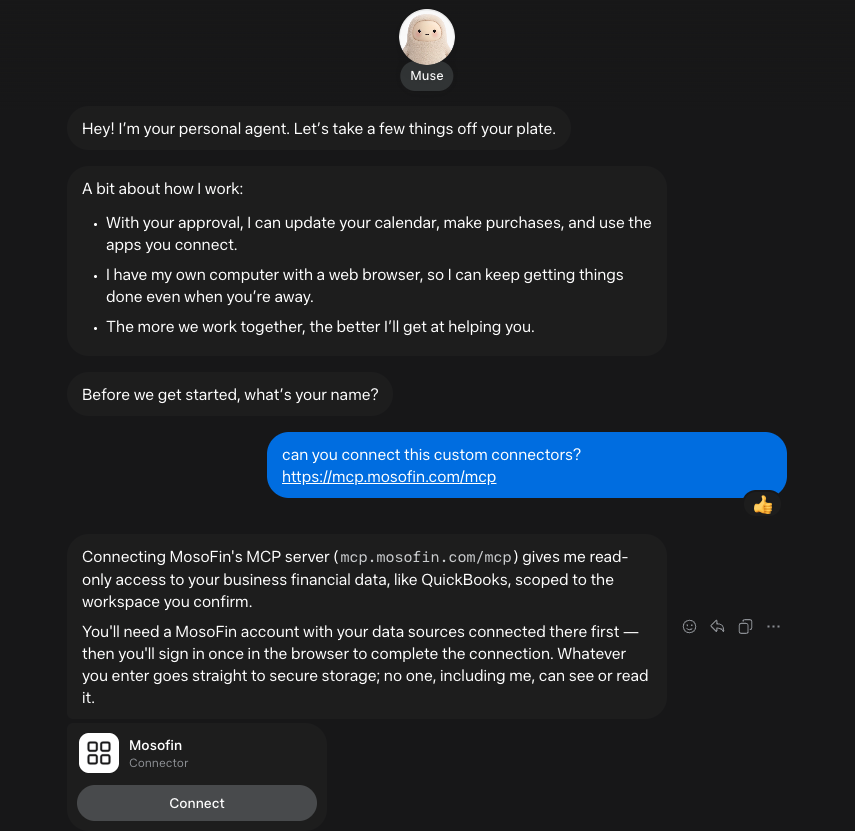
2. Ask Muse: `Connect this custom connector: https://mcp.mosofin.com/mcp`
3. Select **Connect** on the MosoFin connector card.
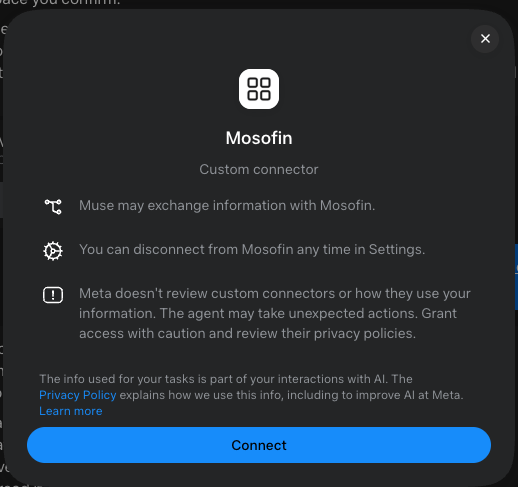
4. Review Muse's custom connector notice, then select **Connect** again.
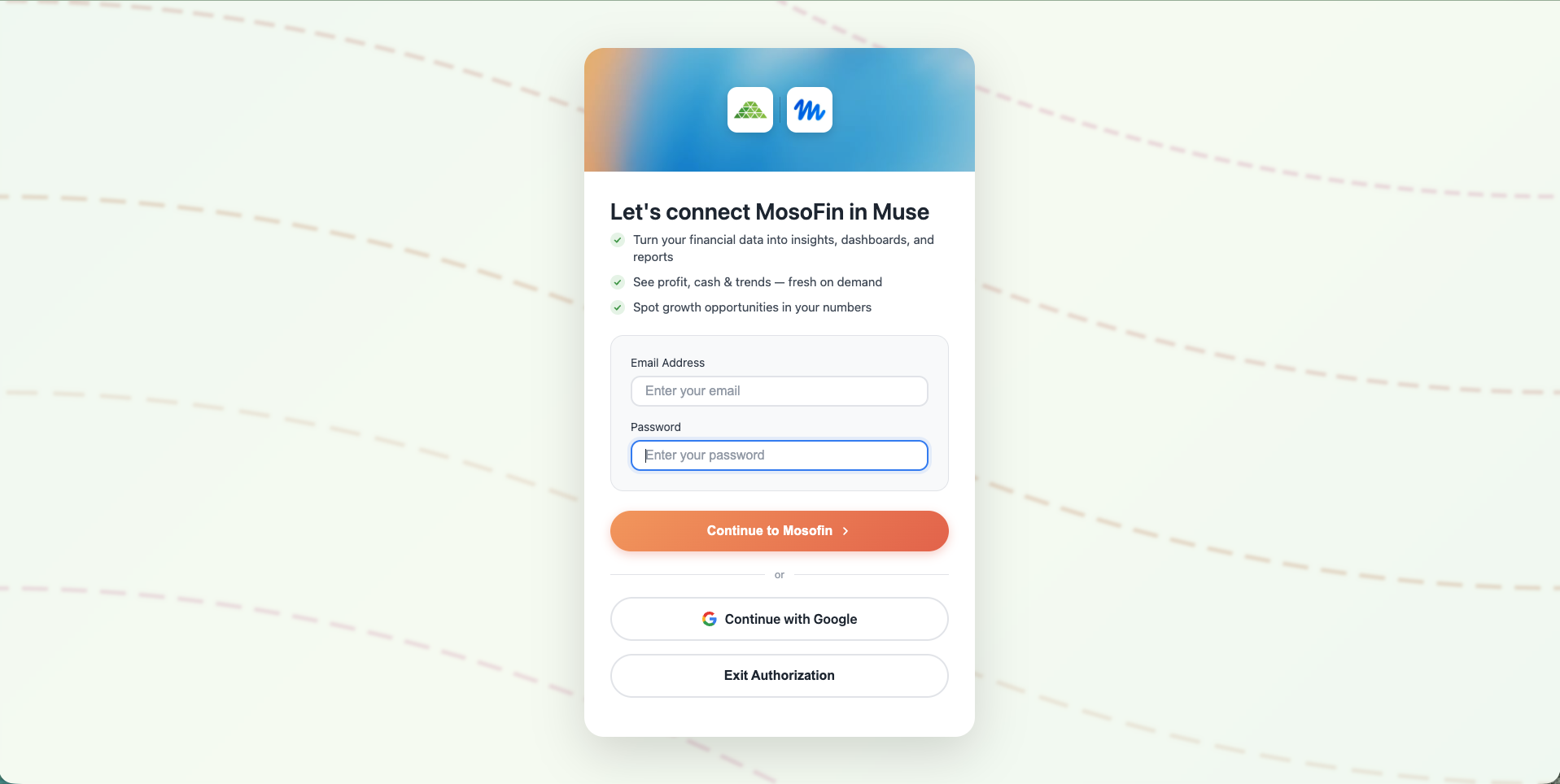
5. Sign in to MosoFin in the browser window that opens.
6. Review the requested access and approve the connection.
**1. Ask Muse to connect MosoFin**
 **2. Review the custom connector notice**
 **3. Sign in to MosoFin**
 ## Test the connection
Ask Muse:
`List my MosoFin workspaces.`
**4. Approve the workspace tool request**
## Test the connection
Ask Muse:
`List my MosoFin workspaces.`
**4. Approve the workspace tool request**
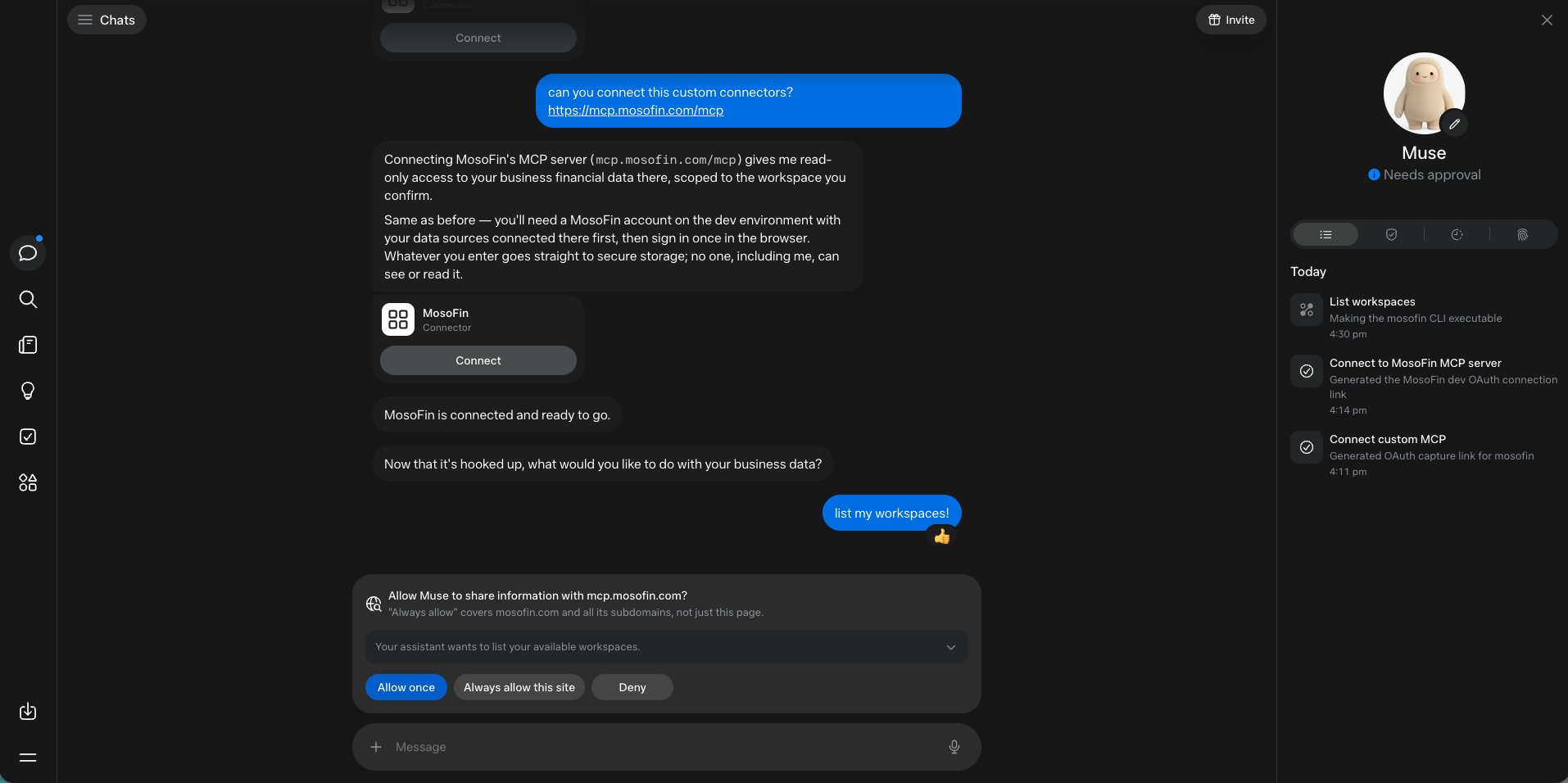 Choose **Allow once** to approve only this request. Choose **Always allow this site** only if you want Muse to use MosoFin tools without asking each time. Select **Deny** if the request is unexpected.
Confirm that Muse lists only the workspaces your MosoFin account can access. Then try:
`Using [workspace name], summarize revenue and expenses for last month.`
**5. Select the company to analyze**
Choose **Allow once** to approve only this request. Choose **Always allow this site** only if you want Muse to use MosoFin tools without asking each time. Select **Deny** if the request is unexpected.
Confirm that Muse lists only the workspaces your MosoFin account can access. Then try:
`Using [workspace name], summarize revenue and expenses for last month.`
**5. Select the company to analyze**
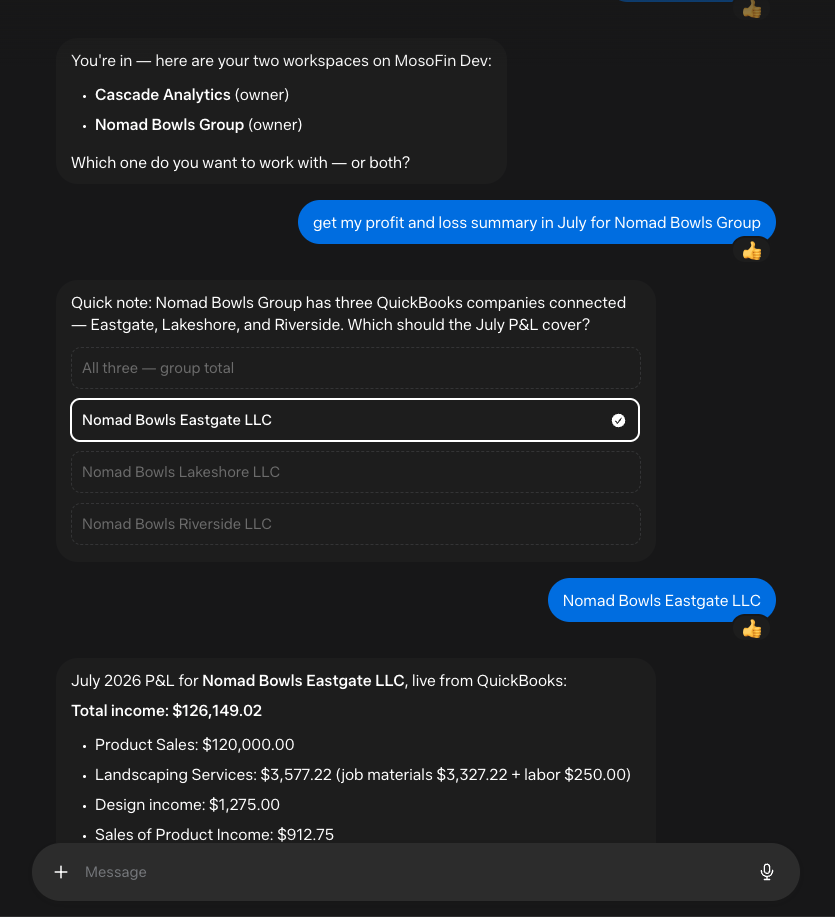 If the workspace contains multiple QuickBooks companies, Muse asks which company should be included. Select one company or request a combined result when that option is available.
**6. Review the financial result**
If the workspace contains multiple QuickBooks companies, Muse asks which company should be included. Select one company or request a combined result when that option is available.
**6. Review the financial result**
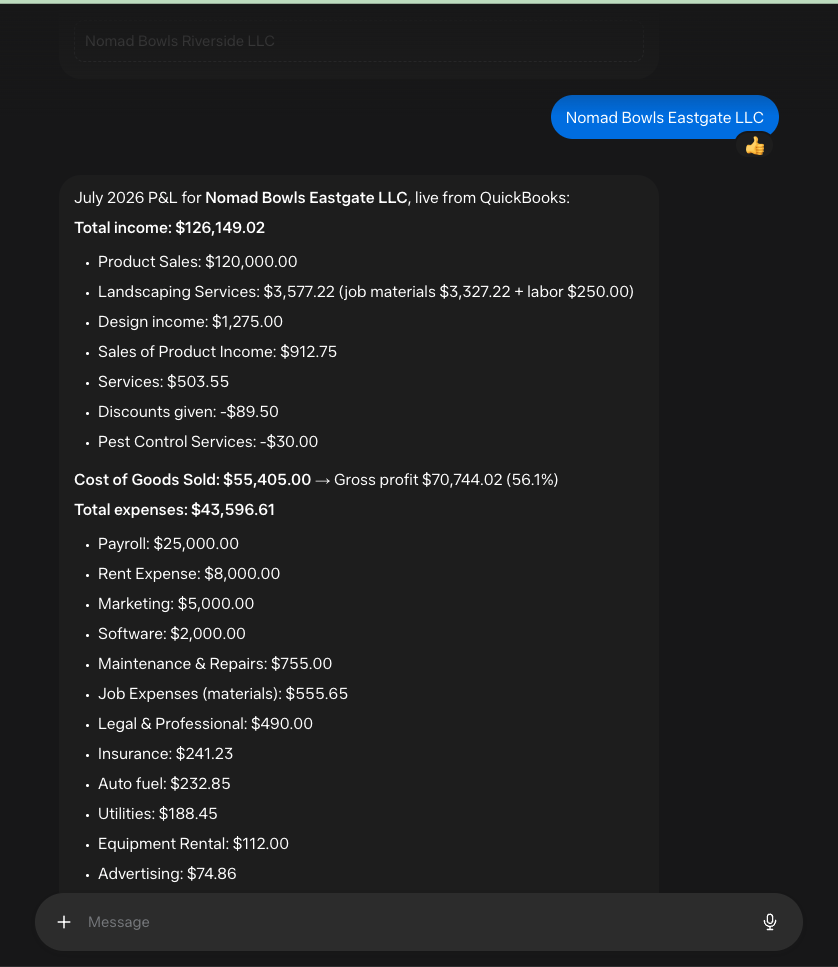 The screenshot shows example financial data. Your result depends on the selected workspace, company, reporting period, and available QuickBooks data.
MosoFin's QuickBooks tools are read-only. They cannot create, update, or delete accounting records or post transactions.
---
# Agent Instructions
This documentation is published with GitBook. GitBook is the documentation platform designed so that both humans and AI agents can read, navigate, and reason over technical content effectively. Learn more at gitbook.com.
## Querying This Documentation
If you need additional information that is not directly available in this page, you can query the documentation dynamically by asking a question.
Perform an HTTP GET request on the current page URL with the `ask` query parameter, and the optional `goal` query parameter:
```
GET https://docs.mosofin.com/source-and-destination/destinations/muse.md?ask=&goal=
```
`ask` is the immediate question: it should be specific, self-contained, and written in natural language.
`goal` is optional and describes the broader end goal you are ultimately trying to accomplish on behalf of the user. GitBook uses it to tailor the answer towards what is most useful for that goal.
The response will contain a direct answer to the question and relevant excerpts and sources from the documentation.
Use this mechanism when the answer is not explicitly present in the current page, you need clarification or additional context, or you want to retrieve related documentation sections.
The screenshot shows example financial data. Your result depends on the selected workspace, company, reporting period, and available QuickBooks data.
MosoFin's QuickBooks tools are read-only. They cannot create, update, or delete accounting records or post transactions.
---
# Agent Instructions
This documentation is published with GitBook. GitBook is the documentation platform designed so that both humans and AI agents can read, navigate, and reason over technical content effectively. Learn more at gitbook.com.
## Querying This Documentation
If you need additional information that is not directly available in this page, you can query the documentation dynamically by asking a question.
Perform an HTTP GET request on the current page URL with the `ask` query parameter, and the optional `goal` query parameter:
```
GET https://docs.mosofin.com/source-and-destination/destinations/muse.md?ask=&goal=
```
`ask` is the immediate question: it should be specific, self-contained, and written in natural language.
`goal` is optional and describes the broader end goal you are ultimately trying to accomplish on behalf of the user. GitBook uses it to tailor the answer towards what is most useful for that goal.
The response will contain a direct answer to the question and relevant excerpts and sources from the documentation.
Use this mechanism when the answer is not explicitly present in the current page, you need clarification or additional context, or you want to retrieve related documentation sections.