> For the complete documentation index, see [llms.txt](https://docs.mosofin.com/llms.txt). Markdown versions of documentation pages are available by appending `.md` to page URLs; this page is available as [Markdown](https://docs.mosofin.com/source-and-destination/sources/woocommerce/connect-woocommerce.md).
# Connect WooCommerce
If WooCommerce is available in your plan and workspace, connect a store by entering its public address and approving read access in WordPress.
## Before connecting
Confirm that:
* WooCommerce is marked **On your plan** under **Account settings > Usage**.
* WooCommerce appears as available under **Data sources**.
* You are in the intended MosoFin workspace.
* You know the store's full HTTPS address, such as `https://store.example.com`.
* You can sign in to WordPress as an administrator or shop manager.
* You are authorized to share the store's permitted commerce data with the workspace.
## Step 1: Confirm WooCommerce is on your plan
1. Open **Account settings** in MosoFin.
2. Select **Usage**.
3. In **Data sources MosoFin covers**, find **WooCommerce** under **E-commerce**.
4. Confirm that WooCommerce is marked **On your plan**.
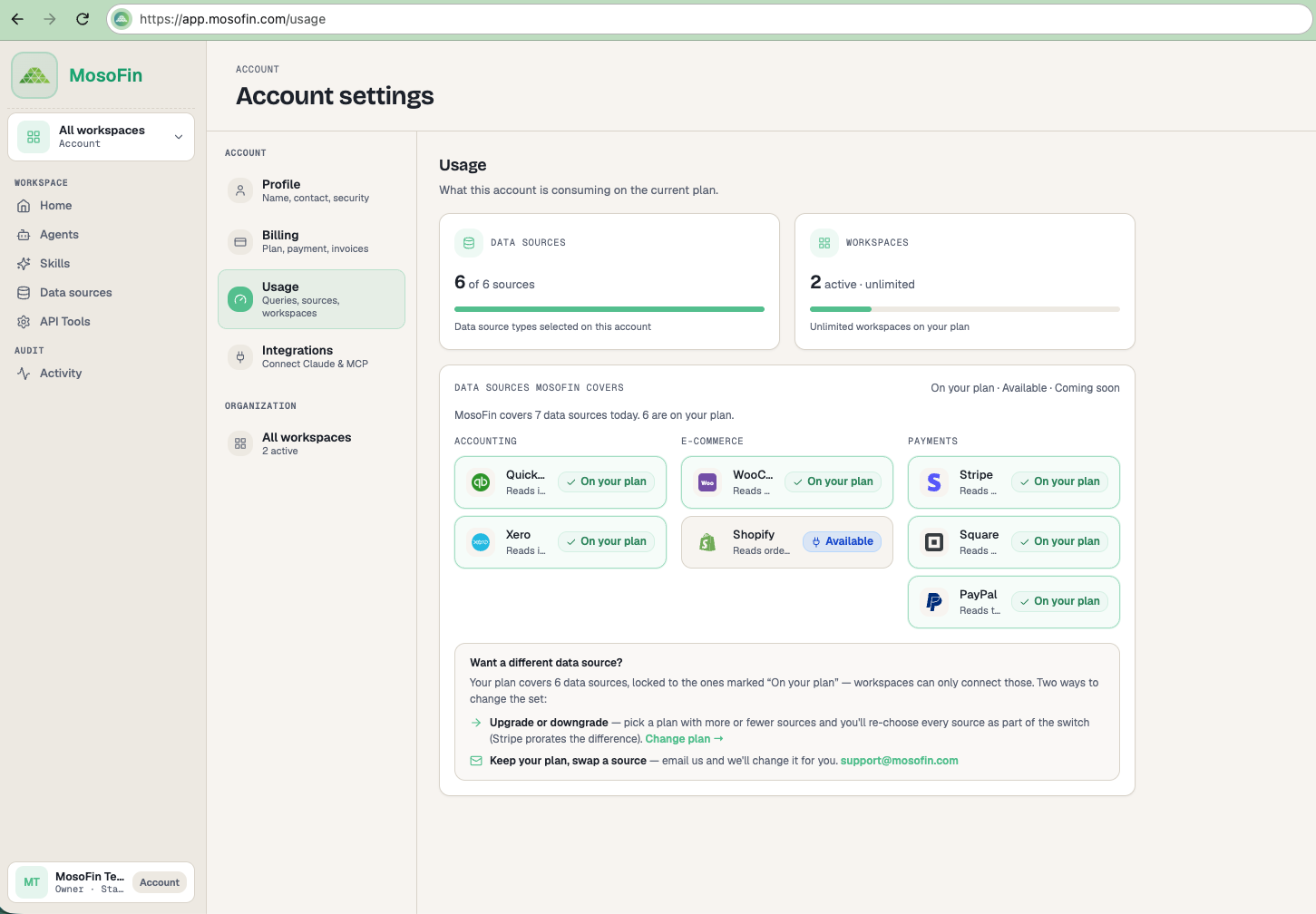 If WooCommerce is not marked **On your plan**, use the options shown on the Usage page to change your data-source selection or contact MosoFin support before continuing.
## Step 2: Start the connection
1. Open **Data sources** in MosoFin.
2. Find **WooCommerce**.
3. Select **Connect WooCommerce**.
4. In the connected-stores dialog, select **Connect a different WooCommerce store**.
If WooCommerce is not marked **On your plan**, use the options shown on the Usage page to change your data-source selection or contact MosoFin support before continuing.
## Step 2: Start the connection
1. Open **Data sources** in MosoFin.
2. Find **WooCommerce**.
3. Select **Connect WooCommerce**.
4. In the connected-stores dialog, select **Connect a different WooCommerce store**.
 ## Step 3: Enter the store address
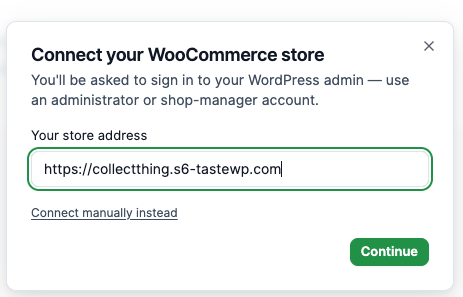
1. Enter the full store address, including `https://`.
2. Select **Continue**.
3. If the normal connection flow does not open, return to this dialog and select **Connect manually instead**.
## Step 3: Enter the store address
1. Enter the full store address, including `https://`.
2. Select **Continue**.
3. If the normal connection flow does not open, return to this dialog and select **Connect manually instead**.
 ## Step 4: Approve read access
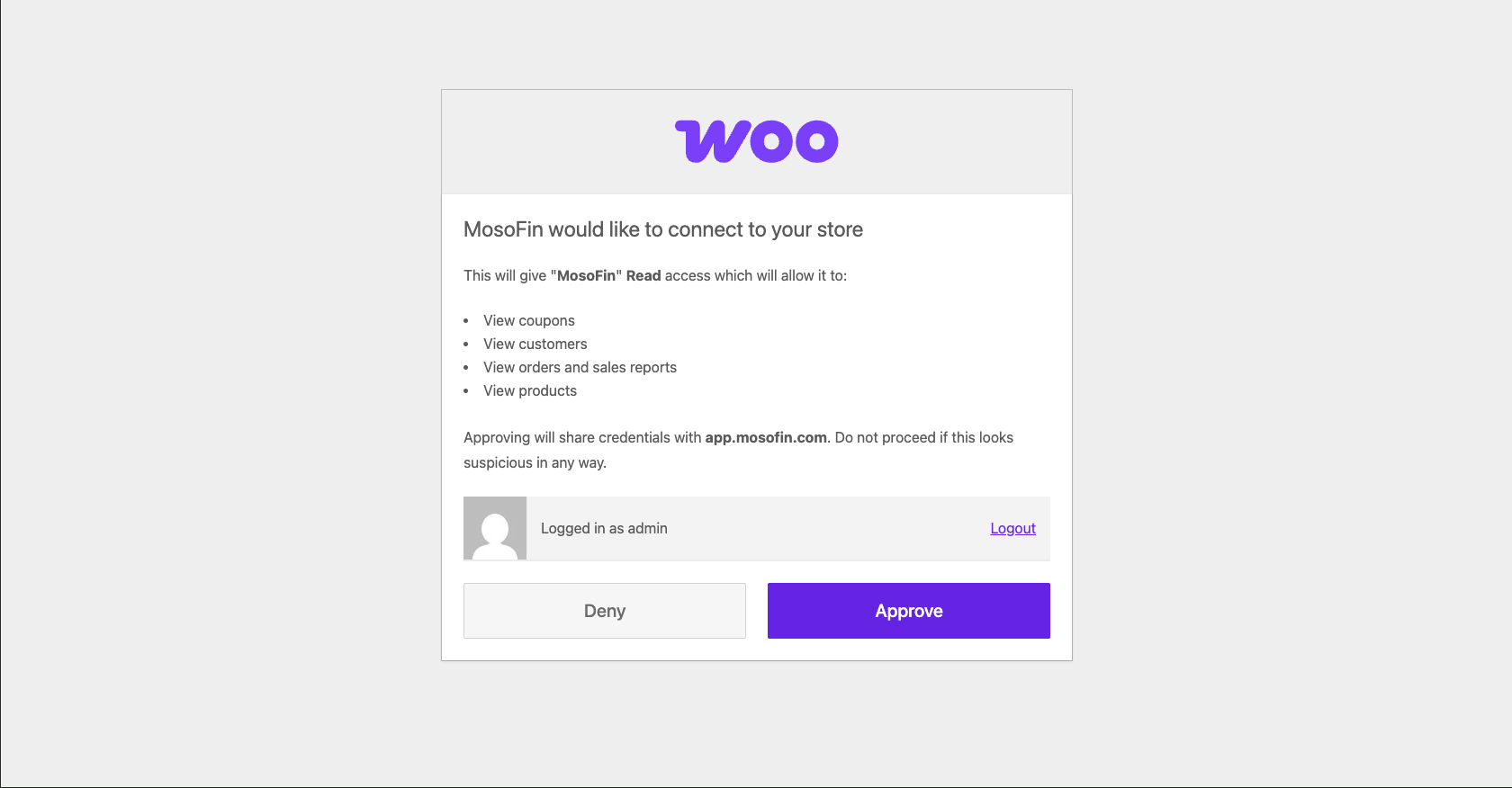
1. Sign in to the store's WordPress admin when prompted.
2. Confirm that the authorization page names **MosoFin** and the intended store.
3. Review the requested read access for coupons, customers, orders and sales reports, and products.
4. Select **Approve**.
## Step 4: Approve read access
1. Sign in to the store's WordPress admin when prompted.
2. Confirm that the authorization page names **MosoFin** and the intended store.
3. Review the requested read access for coupons, customers, orders and sales reports, and products.
4. Select **Approve**.
 ## Step 5: Confirm the connected store
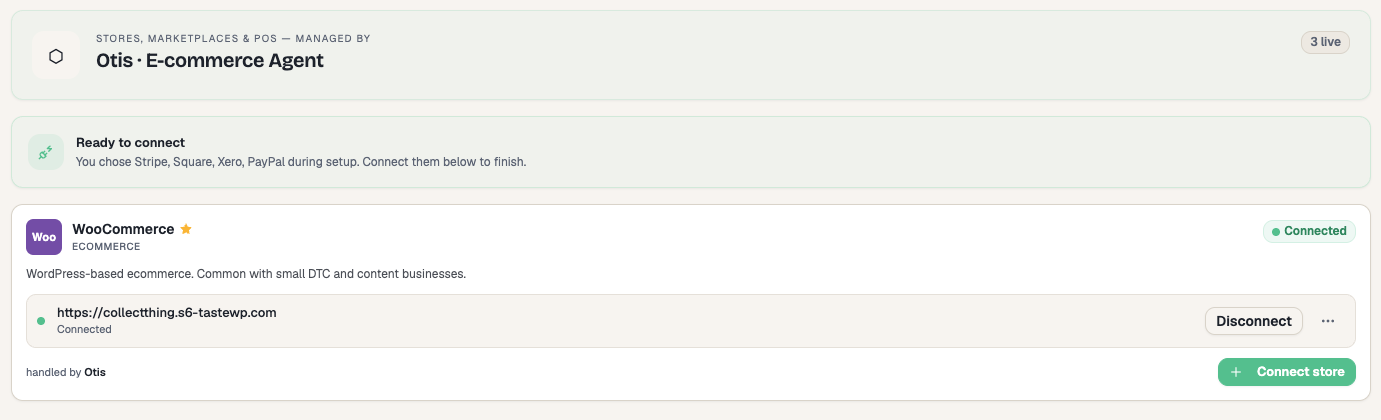
Return to MosoFin and confirm that:
* The WooCommerce card shows **Connected**.
* The correct store address appears as a live entity.
* **Disconnect** is available for the connected store.
## Step 5: Confirm the connected store
Return to MosoFin and confirm that:
* The WooCommerce card shows **Connected**.
* The correct store address appears as a live entity.
* **Disconnect** is available for the connected store.
 To add another store, select **Connect WooCommerce**, then **Connect a different WooCommerce store**. Each store is authorized separately.
## Disconnect or reconnect
Select **Disconnect** beside the store you want to remove. If its row later shows **Connect** or **Reconnect**, use that action to authorize the store again.
Next, review the [available WooCommerce data](/source-and-destination/sources/woocommerce/data-overview.md).
---
# Agent Instructions
This documentation is published with GitBook. GitBook is the documentation platform designed so that both humans and AI agents can read, navigate, and reason over technical content effectively. Learn more at gitbook.com.
## Querying This Documentation
If you need additional information that is not directly available in this page, you can query the documentation dynamically by asking a question.
Perform an HTTP GET request on the current page URL with the `ask` query parameter, and the optional `goal` query parameter:
```
GET https://docs.mosofin.com/source-and-destination/sources/woocommerce/connect-woocommerce.md?ask=&goal=
```
`ask` is the immediate question: it should be specific, self-contained, and written in natural language.
`goal` is optional and describes the broader end goal you are ultimately trying to accomplish on behalf of the user. GitBook uses it to tailor the answer towards what is most useful for that goal.
The response will contain a direct answer to the question and relevant excerpts and sources from the documentation.
Use this mechanism when the answer is not explicitly present in the current page, you need clarification or additional context, or you want to retrieve related documentation sections.
To add another store, select **Connect WooCommerce**, then **Connect a different WooCommerce store**. Each store is authorized separately.
## Disconnect or reconnect
Select **Disconnect** beside the store you want to remove. If its row later shows **Connect** or **Reconnect**, use that action to authorize the store again.
Next, review the [available WooCommerce data](/source-and-destination/sources/woocommerce/data-overview.md).
---
# Agent Instructions
This documentation is published with GitBook. GitBook is the documentation platform designed so that both humans and AI agents can read, navigate, and reason over technical content effectively. Learn more at gitbook.com.
## Querying This Documentation
If you need additional information that is not directly available in this page, you can query the documentation dynamically by asking a question.
Perform an HTTP GET request on the current page URL with the `ask` query parameter, and the optional `goal` query parameter:
```
GET https://docs.mosofin.com/source-and-destination/sources/woocommerce/connect-woocommerce.md?ask=&goal=
```
`ask` is the immediate question: it should be specific, self-contained, and written in natural language.
`goal` is optional and describes the broader end goal you are ultimately trying to accomplish on behalf of the user. GitBook uses it to tailor the answer towards what is most useful for that goal.
The response will contain a direct answer to the question and relevant excerpts and sources from the documentation.
Use this mechanism when the answer is not explicitly present in the current page, you need clarification or additional context, or you want to retrieve related documentation sections.